Help — Automatic Multilingual Text Summarization Software SummarizOR
Advanced Summarization Mode
- SummarizOR's Interface
I. The Interface of SummarizOR
The SummarizOR interface allows you to choose different parameters (Figure 1):
 Choose the language of the document to summarize among 21 languages
 Choose the domain of the document to summarize
(Agriculture, Agribusiness, Banking, Commerce, Communication, Computer Science, Law, Economics, Education,
Employment, Energy, Enterprise, Environment, Finance, Geography, Industry, Institutions, Legal, Medical,
International Organizations, Country, People, Politics, International Relations, Sciences, Corporations,
Technology and Research, Transport, Cities)
Choose the domain of the document to summarize
(Agriculture, Agribusiness, Banking, Commerce, Communication, Computer Science, Law, Economics, Education,
Employment, Energy, Enterprise, Environment, Finance, Geography, Industry, Institutions, Legal, Medical,
International Organizations, Country, People, Politics, International Relations, Sciences, Corporations,
Technology and Research, Transport, Cities) Enter keywords or phrases (in quotation marks - " ") to customize the automatic summary to your needs
 Set the display mode among three options (Standard, Context, Numbered)
 Highlight the summary with our innovative font-size display
 Text area for automatic summarization
 Summarize button
 Select the document type: Text (copy/paste or drag & drop), Web Page (URL), WEB PAGES (batch URLs), Folder (file)
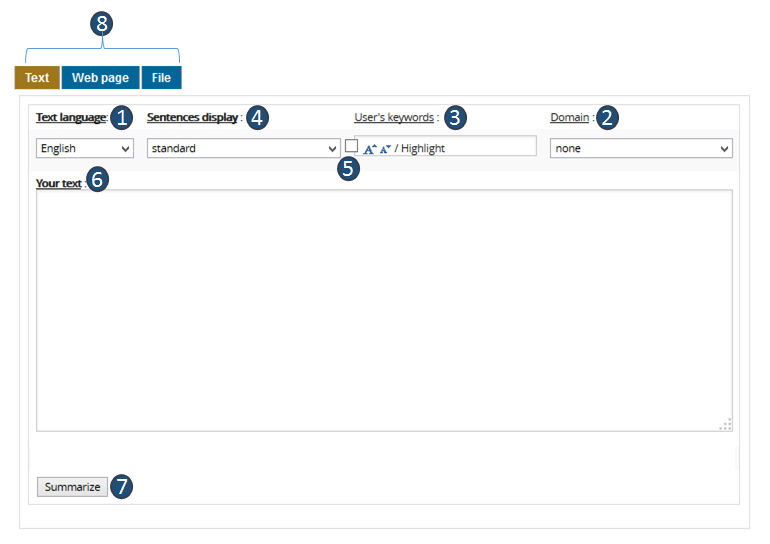
Figure 1: SummarizOR's Interface
1. Choose the language of the text to summarize
A drop-down list allows you to select the source language among 21 languages.
2. Choose a specific domain
Choose a domain to customize the automatically generated summary.
Domain:
SummarizOR allows integration of dictionaries, thesauri, ontologies, glossaries, acronyms or other named entities specific to the user's needs. These resources increase the salience of the generated summary. Each term found in the source text is represented with its occurrence count, and the user can navigate through all occurrences using the Tab key (Figure 2).
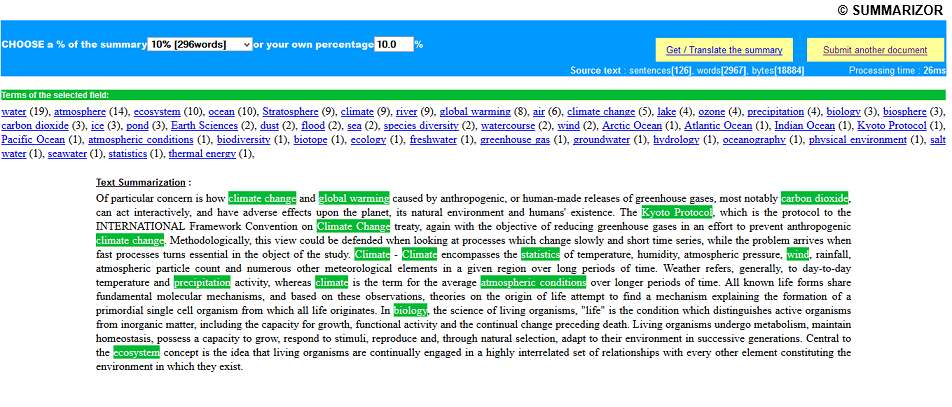
Figure 2: Choose a specific domain
3. Enter specific words or phrases
You can enter specific words or phrases (in quotation marks) to customize the summary to your needs. For a single word, no quotes are needed. After generating the summary, the number of occurrences found in the source text is displayed. You can navigate through them using the Tab key. These terms steer the automatic summary toward the information you are seeking (Figure 3).
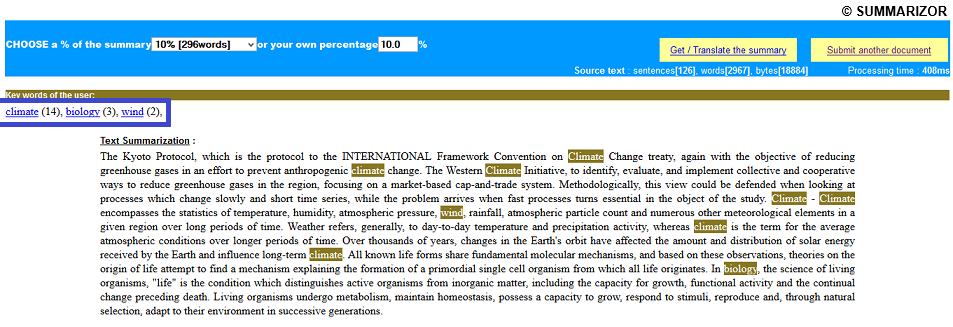
Figure 3: Enter specific words or phrases
4. Select the display mode
You can choose three display modes: "Standard", "Context" and "Numbered". Each allows two levels depending on whether the "Highlight" checkbox is checked or unchecked.
Display:
A. Standard Mode:
Standard mode is the default display mode (Figure 4).
If the box  is unchecked, processing does not alter the visual presentation of the source text. Example:
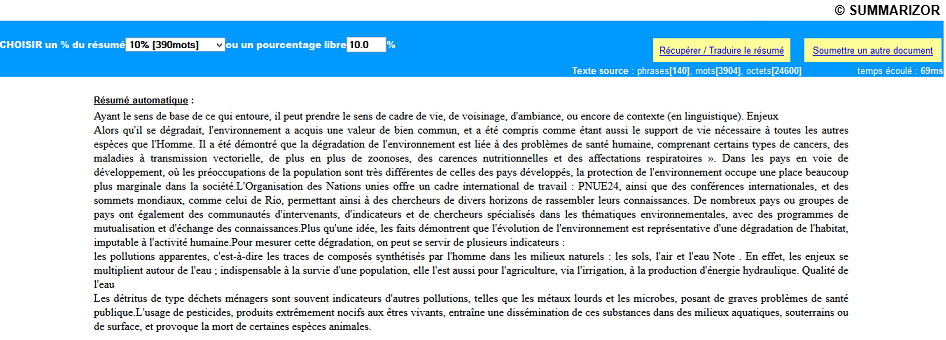
Figure 4: Standard display
If the box  is checked, sentences conveying important information are displayed in larger characters; those of lesser importance in smaller characters. This innovative scale lets the user visually scan the document and its summary at a glance (Figure 5).
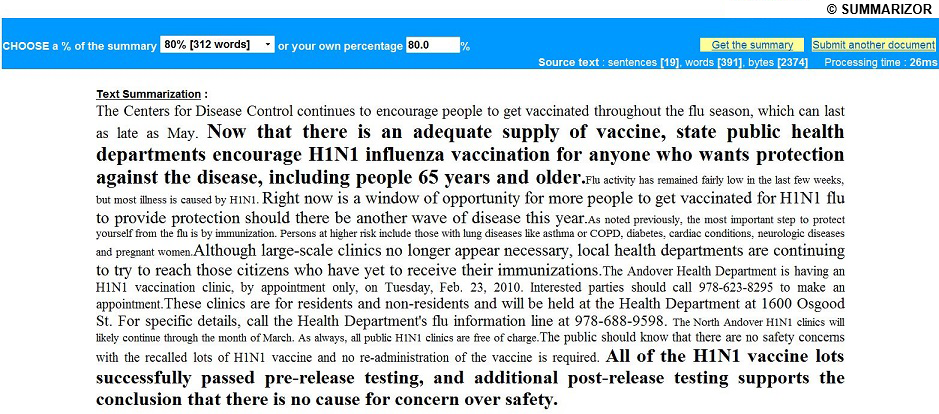
Figure 5: Highlight with Standard display
B. Context Mode:
All sentences in the source text are surrounded on the left by "-" and on the right by "+". After choosing the desired condensation level, click "-" or "+" to retrieve context upstream or downstream of the extracted sentence. Double-click a sentence to remove it from the summary (Figure 6).
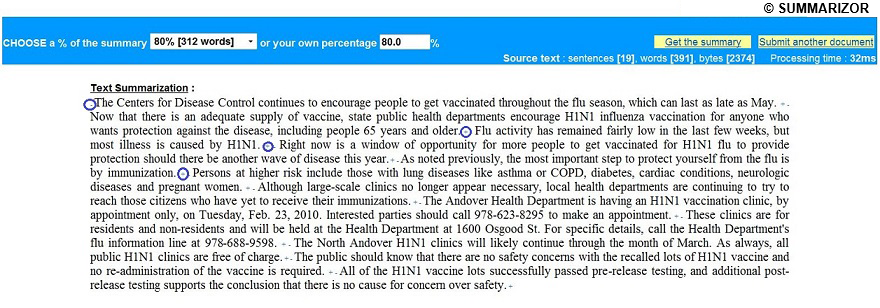
Figure 6: Context display
If the box is checked, the innovative font-size gradation is combined with a color gradient corresponding to the importance of each sentence (Figure 7).
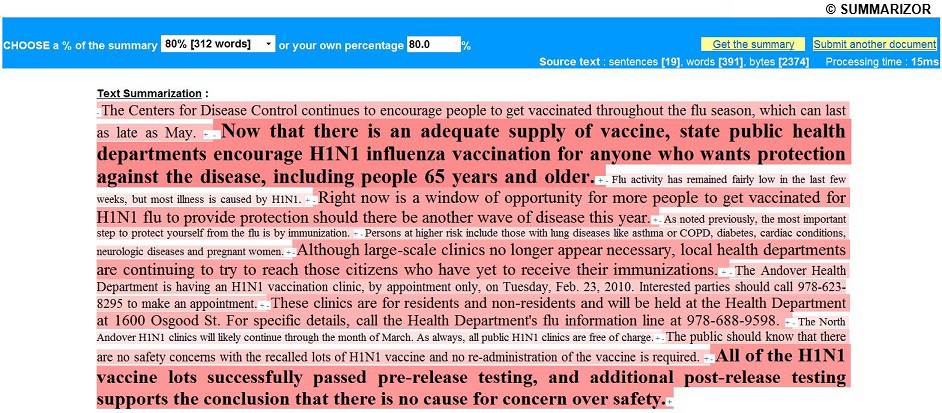
Figure 7: Highlight with Context display
C. Numbered Mode:
All source sentences are numbered. Click "-", "+" or "x" to retrieve context upstream, downstream or remove a sentence. In the example below, clicking "-" above sentence "number 8" will display sentence "number 7"; clicking "+" will display "number 9" (Figure 8).
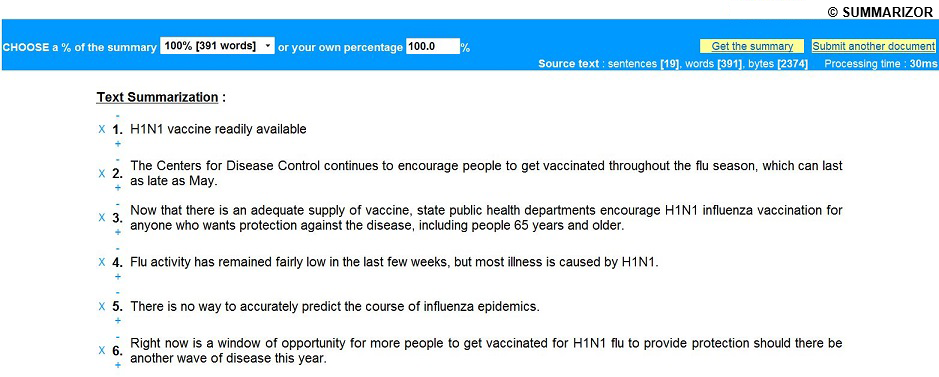
Figure 8: Numbered display
If the box is checked, the innovative font-size gradation is applied (Figure 9).
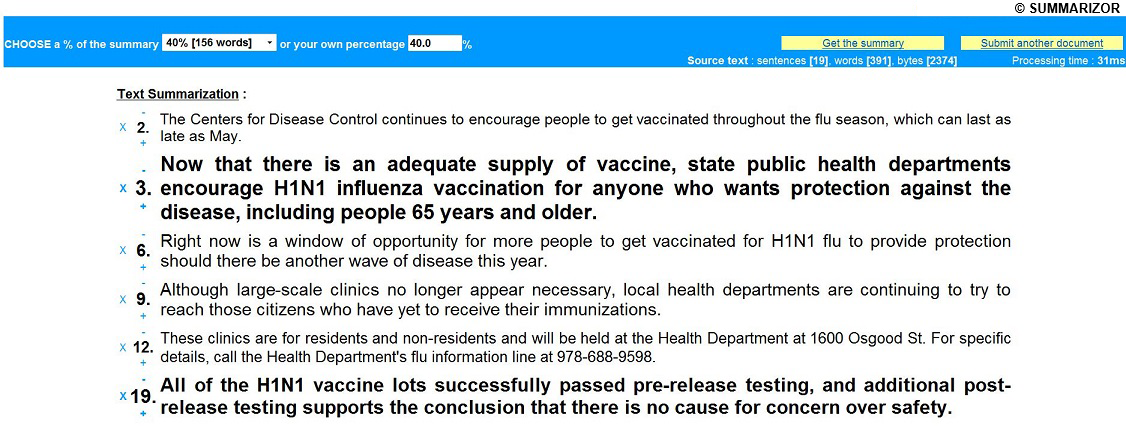
Figure 9: Highlight with Numbered display
5. Highlight phrases

Sentences conveying important information are displayed in large characters; those of lesser importance in small characters. This innovative scale lets the user scan the document and/or its summary at a glance (Figure 10).
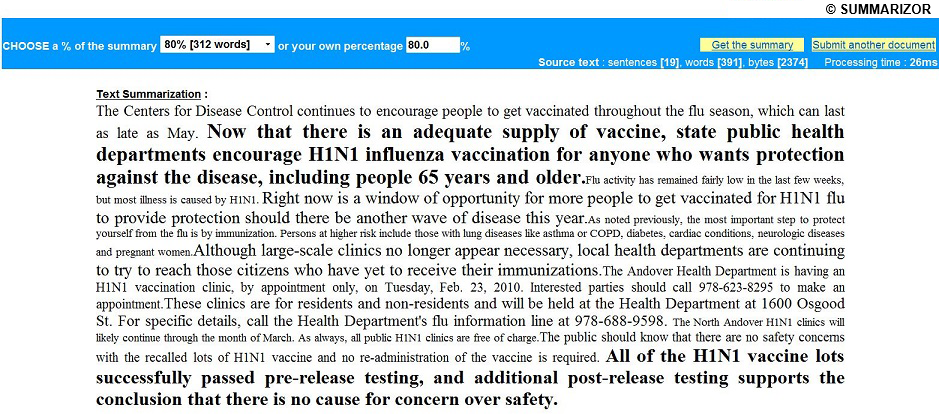
Figure 10: Highlight phrases
6. Summarize different types of documents
SummarizOR offers four processing tabs depending on the document source:

Text: document from the clipboard (copy/paste) or by drag & drop (TXT, CSV, MD, HTML, PDF, DOCX, XLSX, PPTX, ODF).
Web Page: content from a URL on the Internet, an intranet or corporate extranet.
WEB PAGES: batch processing — automatic summarization of a list of URLs submitted simultaneously. Personal Edition only.
Folder: a single document from any storage medium (hard drive, USB drive, CD, DVD...). Personal Edition only.
A. Text tab — copy/paste and drag & drop
Paste your text into the input area, or drag and drop a file directly from your file explorer. Supported formats: TXT, CSV, MD, HTML, PDF, DOCX, XLSX, PPTX and ODF.
After submitting the text, choose a condensation level from 100% to 1%, or enter a custom percentage (Figure 11).
The automatic summary is then displayed.
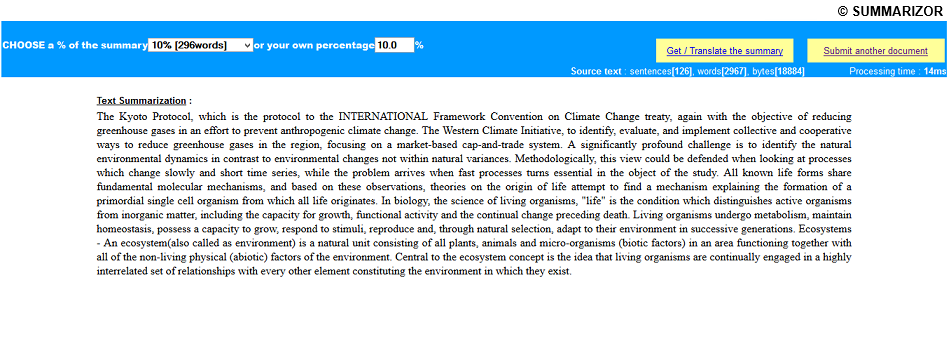
Figure 11: Summarize a document
Useful statistics are also shown: the number of sentences, words and characters (bytes) of the source text.  Processing time is also indicated.
The summary can be exported or translated with a single click on "Get / Translate summary". 
B. Web Page tab — summarize a URL
Automatically summarize a document from an Internet URL
Enter the URL of the web page to summarize, including "http://" or "https://" (Figure 12).
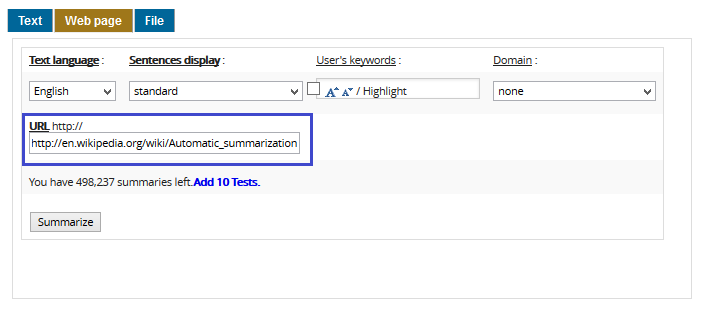
Figure 12: Summarize a web page
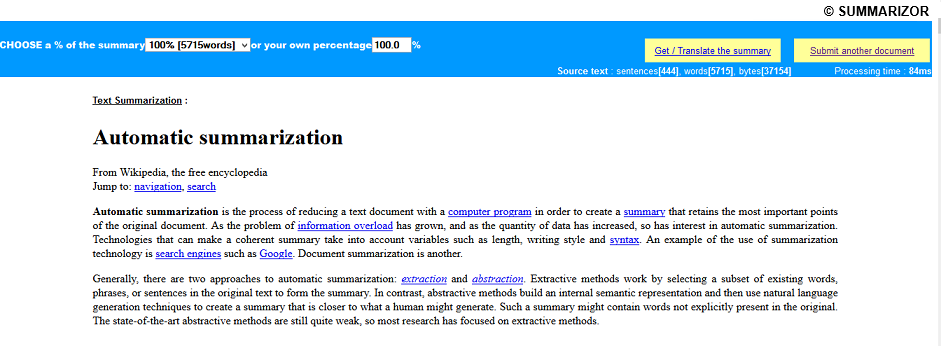
Figure 13: Web page summary result
C. WEB PAGES tab — batch URL processing
Automatically summarize a list of URLs in a single operation
⭐ Exclusive SummarizOR Personal Edition feature — unavailable anywhere else in the world. Not available in the online version.
The WEB PAGES tab lets you submit multiple URLs simultaneously (one per line) and receive their automatic summaries in batch. Each summary is presented as a clickable link giving direct access to the source document. This mode is particularly suited to web monitoring and corpus analysis.
How to use it:
- Type or paste your list of URLs into the text area (one URL per line)
- Choose the language, domain and other parameters as usual
- Click the Summarize button
- Summaries are displayed for each URL, with a link to the source
👉 Get SummarizOR Personal Edition
D. Folder tab — browse a file
Summarize a document from any storage medium
⭐ Exclusive SummarizOR Personal Edition feature — direct access to your local files (hard drive, USB drive, CD, DVD...), impossible from a standard web browser. Not available in the online version.
Browse a file on an internal or external hard drive, USB drive, CD, DVD... (Figure 14).
👉 Get SummarizOR Personal Edition
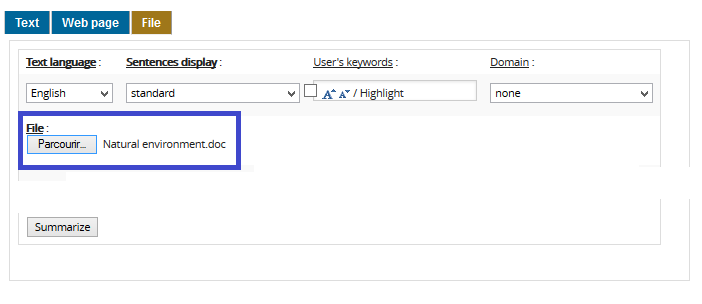
Figure 14: Browse a file
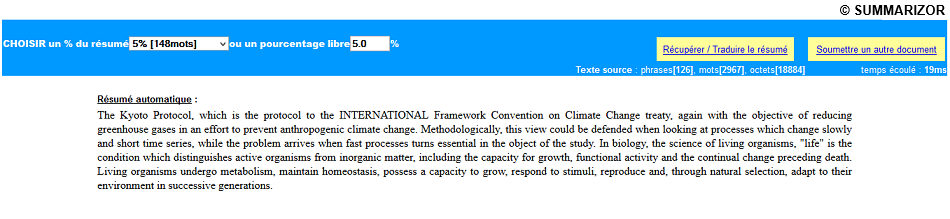
Figure 15: Summarize a text
A single click on "Get / Translate summary" lets you export the generated summary or translate it into any language of your choice (Figure 16).
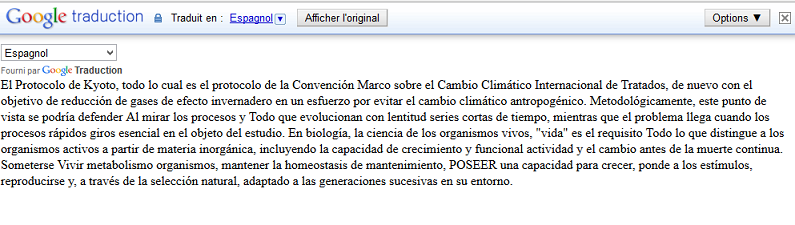
Figure 16: Translate the summary
You can also submit another document by clicking 
7. AIExtracteur — Advanced Concept Analysis
After each automatic summary, the AIExtracteur bar appears at the bottom of the interface. It provides three complementary concept analysis tools, built on the key concepts extracted from the summarized text:
- Concept Map — generates an interactive concept map representing the relationships between the most salient terms of the summarized document.
- Word Cloud (User Concepts) — visualizes key concepts as a word cloud weighted by their frequency and importance in the summary.
- SummarizOR AImindMap — produces a structured mind map from the summary, facilitating memorization and navigation through the document's main ideas.
Important: AIExtracteur operates after a summarization (Text, Web Page, WEB PAGES or Folder tab). It has no meaning without prior processing.