Help on the automatic multilingual summarization software
SummarizOR
Advanced summarization mode
You can summarize automatically various types of documents from various sources, with the following options :
-
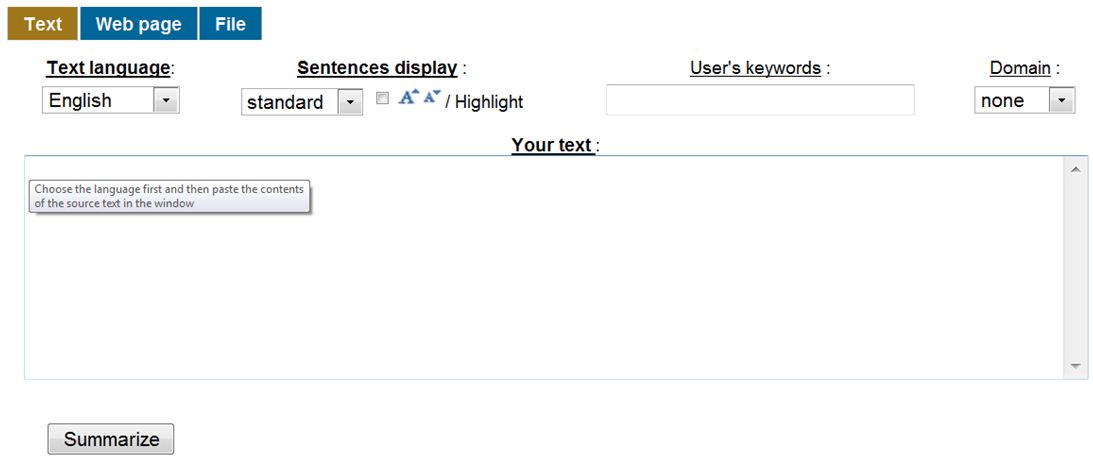
"Text" : clipboard contents (cut and paste);
"Web page" : contents of page or under a URL on a network such as the Internet, or an intranet or extranet;
"File" : document coming from various supports including PC hard disks, USB key, CD, DVD ...
To summarize clipboard contents :
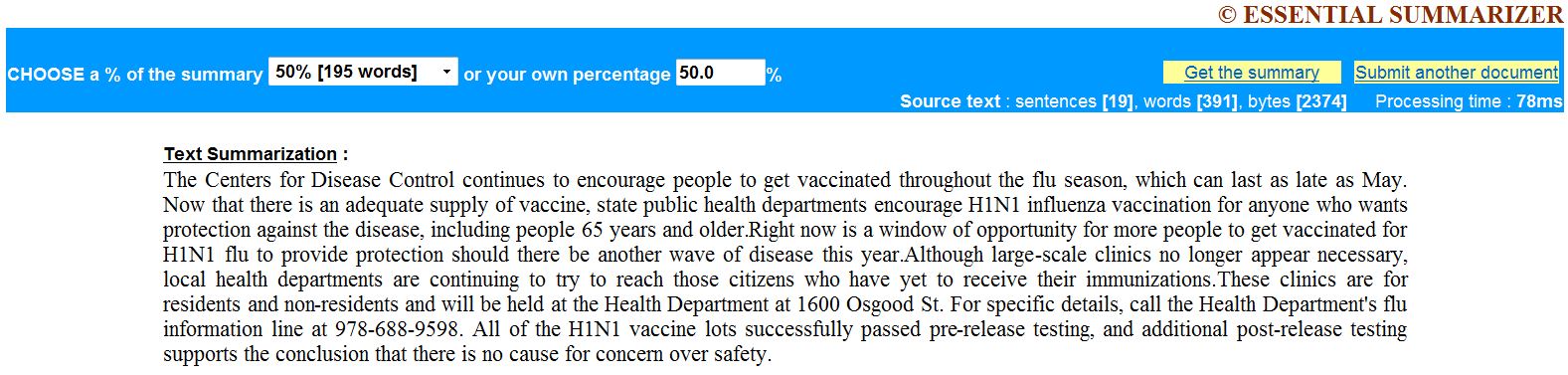
Paste the text into the specific window. Simply click thebutton. Choose the degree of condensation from 100% to 1%, or enter any number between 0 and 100%.
The summary is then displayed, along with additional information including: numbers of sentences, of words and of characters (bytes) of the summary, and processing time.
The summary can be exported (or saved) by copying viaand pasting.
Note that this also applies to the other two ways of acquiring a document – ” Web page” and” File”.
Summarizing a document from a URL (Internet or Web page) :
Enter the URL / Internet address of the Web page (include http://) and click on the) and click on theSummarizing a file from various supports; PC hard disk, USB key, CD, or DVD :
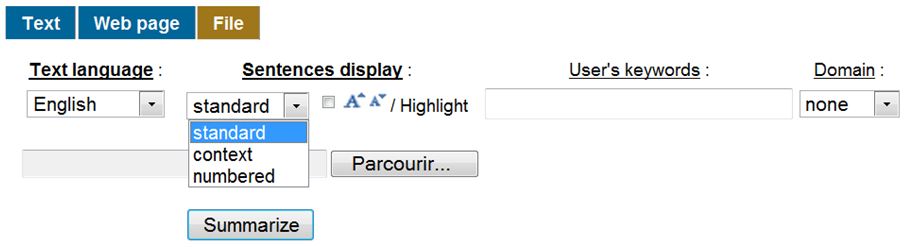
Click on “Browse” and select a file, then click on theSummarizOR’s command bare :
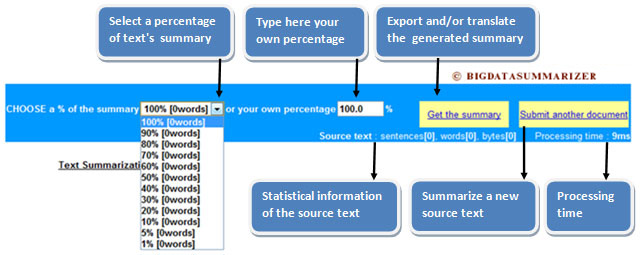
SummarizOR’s advanced functionalities :
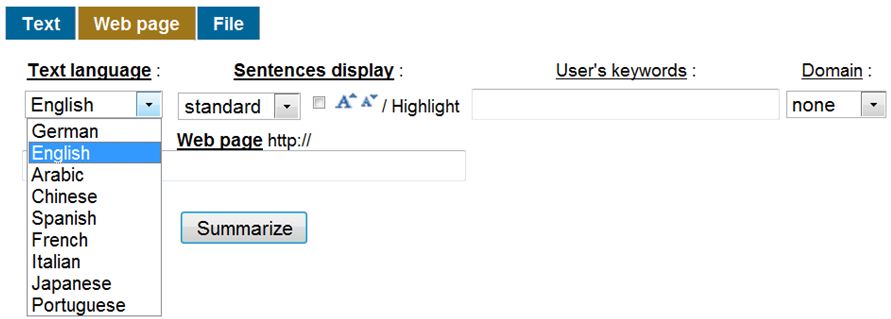
Advanced functionalities give rapid access to the information, maintaining sufficient coherence for the comprehension of the summary.A. Choice of language :
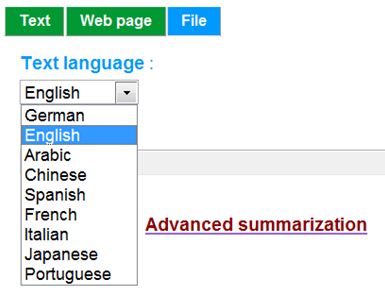
A drop-down list lets you choose the language of the source text.B. Sentences display :
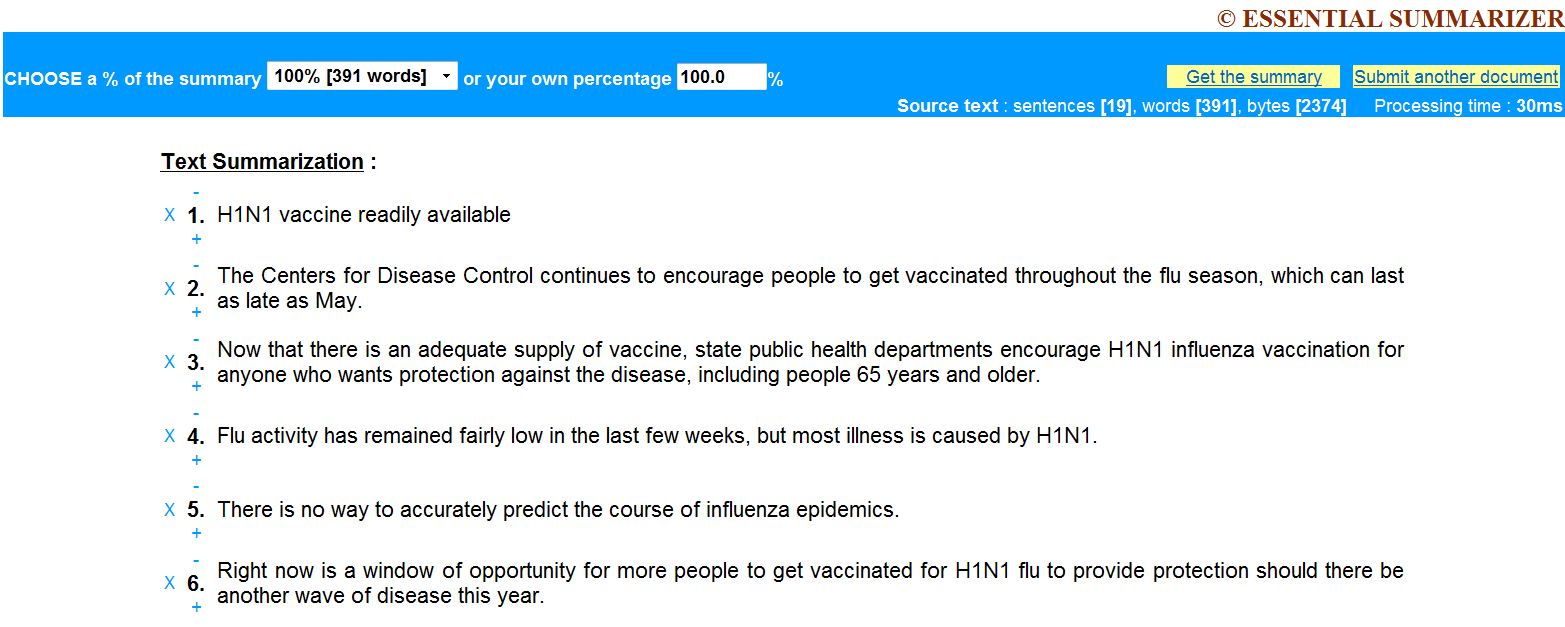
Three views are provided. “standard”, “context” and “numbered”, each declined in two variants governed by the checkbox
“Standard” mode :
: if the box is unchecked, the processing does not alter the source text.
Example :
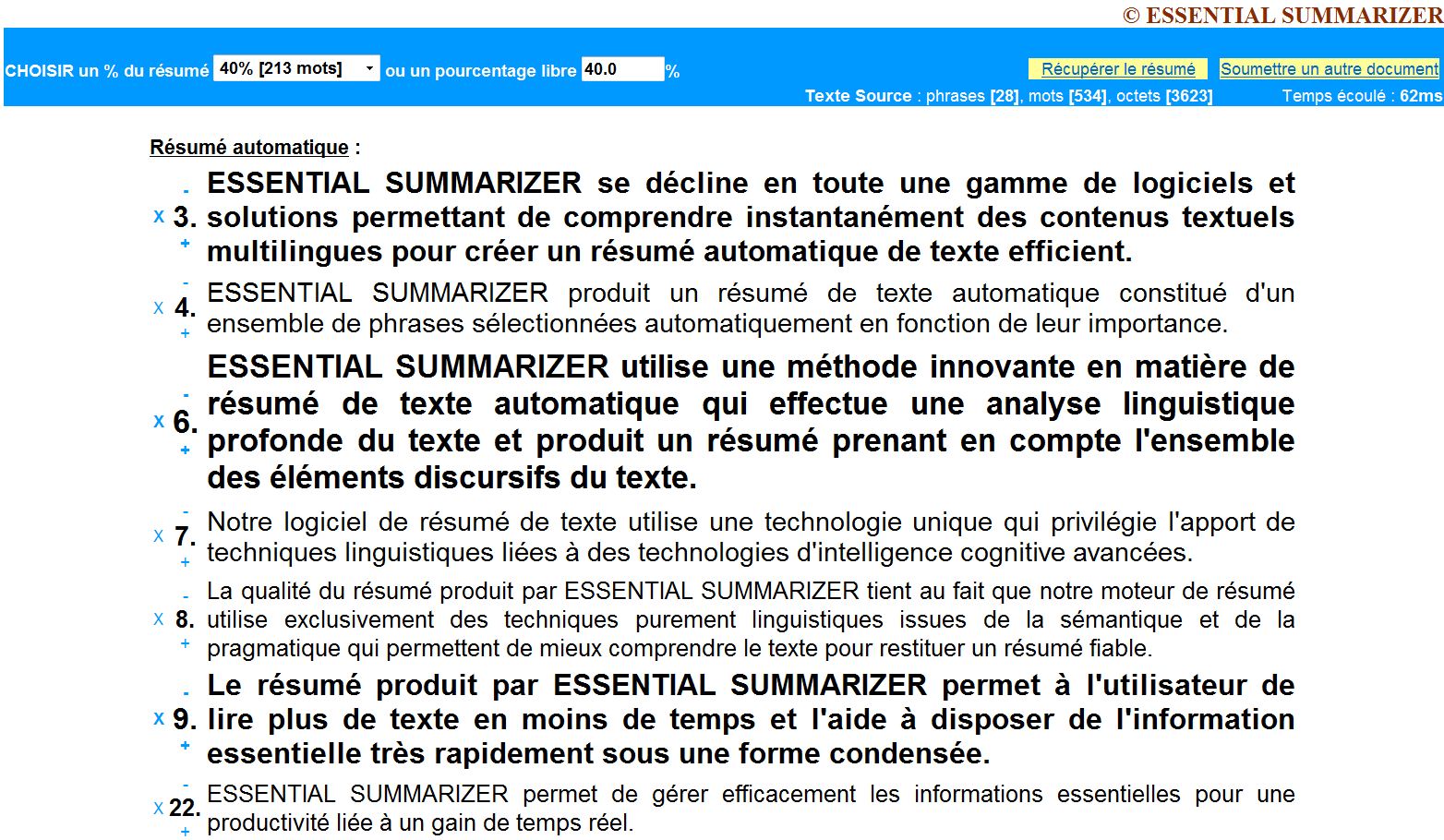
: if the box is checked, the sentences of the source text and the summary are presented in the form of a particular display. The sentences that are likely to convey important information are displayed in larger characters. Conversely, those likely to convey information with less importance are displayed in small characters. In this innovative display mode, the user can visually scan with ease, giving more attention to the larger-scale passages in the document and its summary.
Example:

"Context" mode :
Example :
Example :

Example :
Example :
C. User keywords :
You can enter words or expressions (between quotes). After generating the summary, the program provides the number of occurrences of the words or expressions entered and found in the source text. You can navigate across their occurrences using the spacebar. The words or expressions you have selected are taken into account for the selection of the sentences that make up the summary.
Example :

D. Domain :
SummarizOR can integrate various domain dictionaries, lexicons or thesauri to give more relevance to the summary. For each term actually found in the source text, it provides the corresponding number of occurrences, and you can navigate them using the spacebar. In some domains, you can also navigate across the synonyms of the terms.

7. AIExtracteur — Advanced Concept Analysis
After each automatic summary, the AIExtracteur bar appears at the bottom of the interface. It provides three complementary concept analysis tools, built on the key concepts extracted from the summarized text:
- Concept Map — generates an interactive concept map representing the relationships between the most salient terms of the summarized document.
- Word Cloud (User Concepts) — visualizes key concepts as a word cloud weighted by their frequency and importance in the summary.
- SummarizOR AImindMap — produces a structured mind map from the summary, facilitating memorization and navigation through the document's main ideas.
Important: AIExtracteur operates after a summarization (Text, Web Page, WEB PAGES or Folder tab). It has no meaning without prior processing.